Weekly reviewNew
Time reclaimedProgress you see
See the time you win back, week after week.
 TimeBack
Set limits, breaks, schedules, and focus zones with Apple's Screen Time tools. No account, no ads, and no data leaving your iPhone or iPad.
Free • Private • No account needed
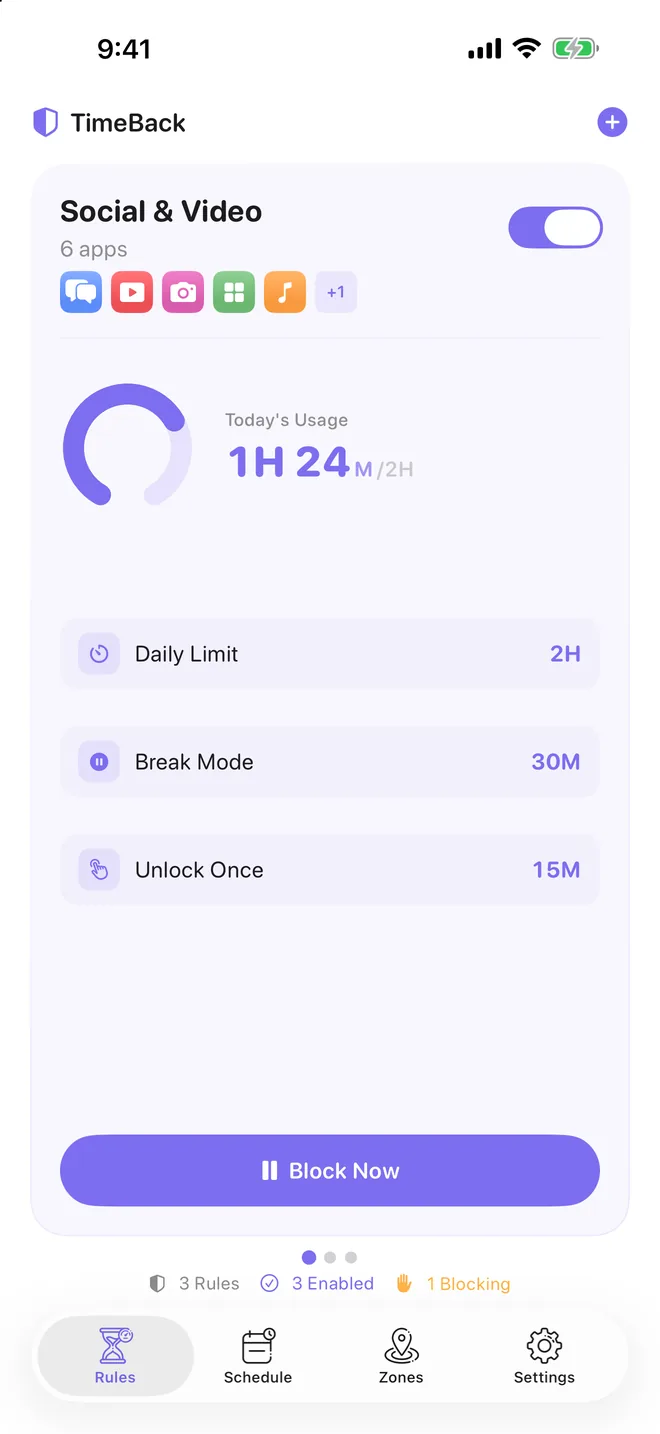

Screens from the iPhone app: rules, schedules, zones, the block screen and the Guardian Passcode.
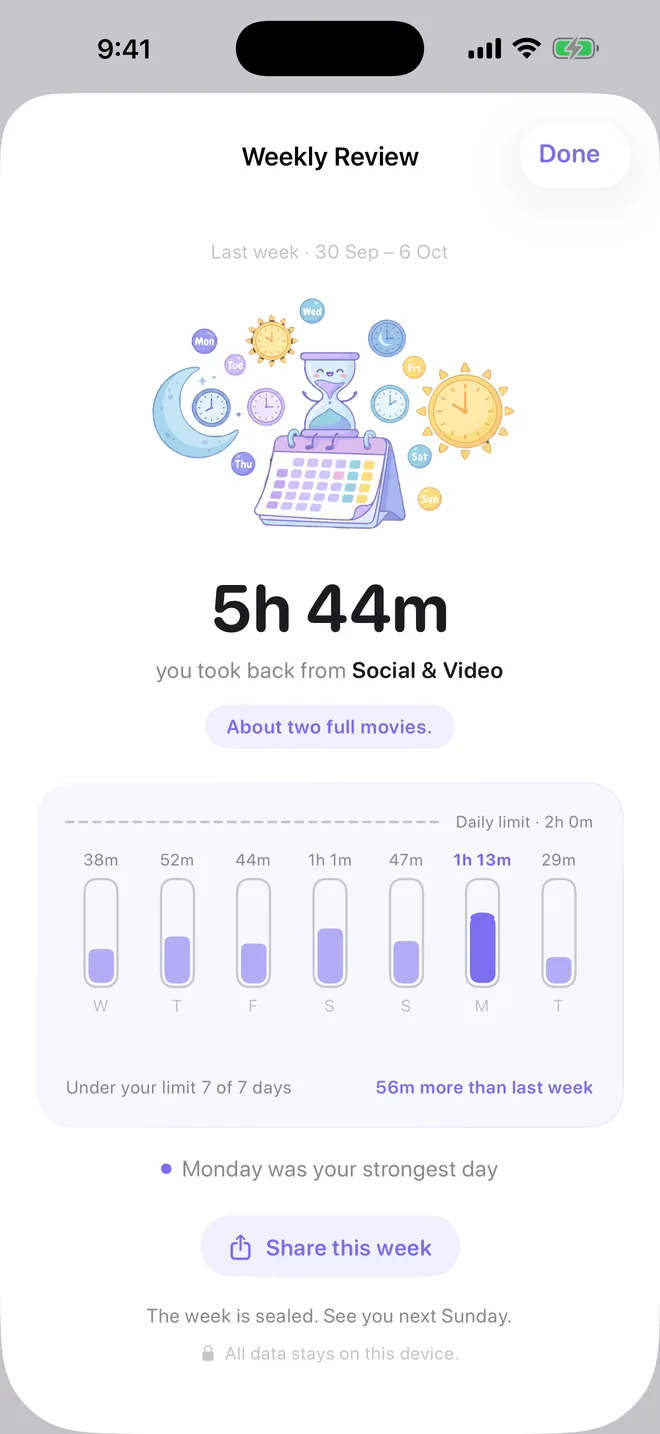
See the time you win back, week after week.
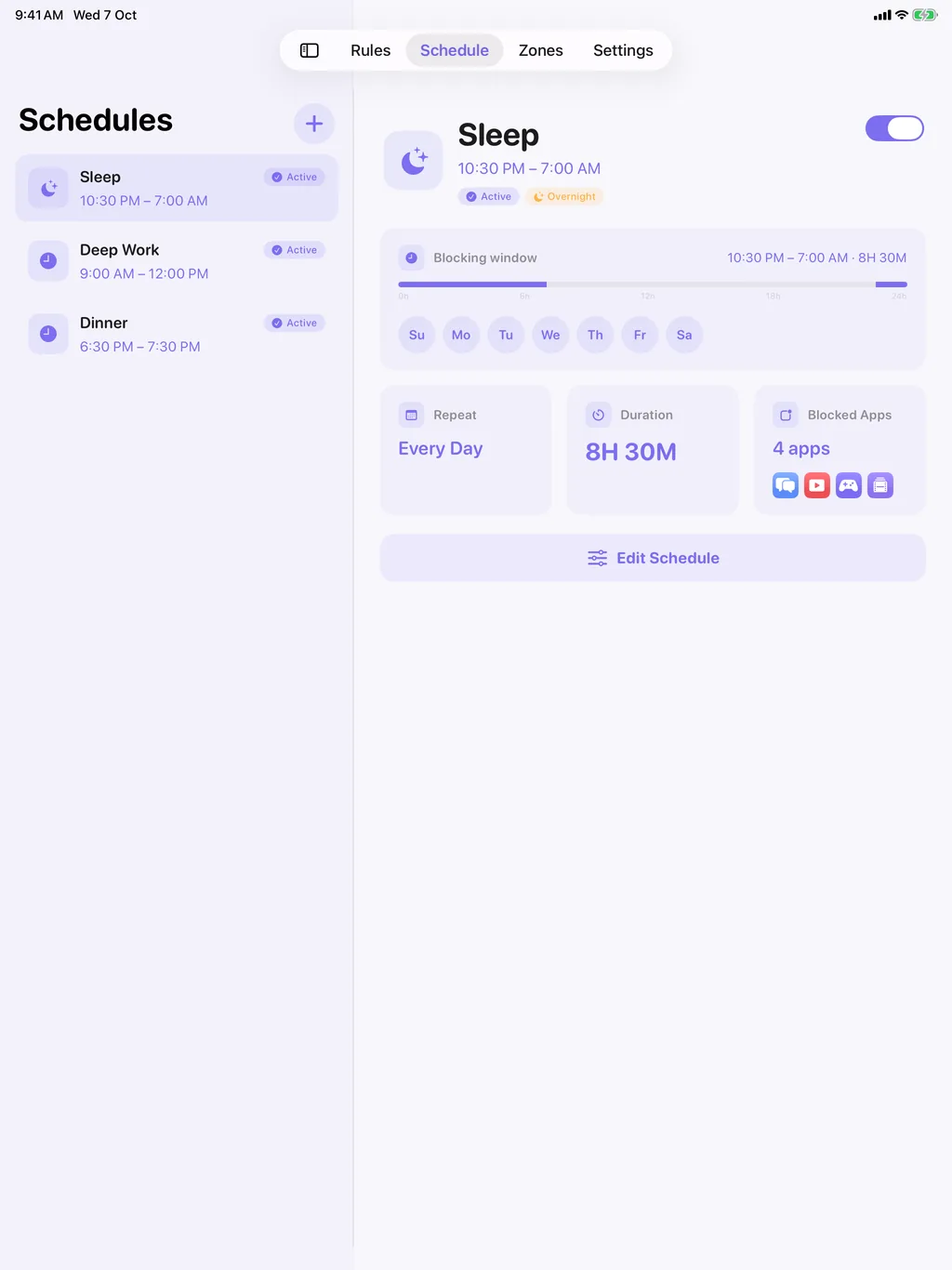
Block distractions on your schedule.
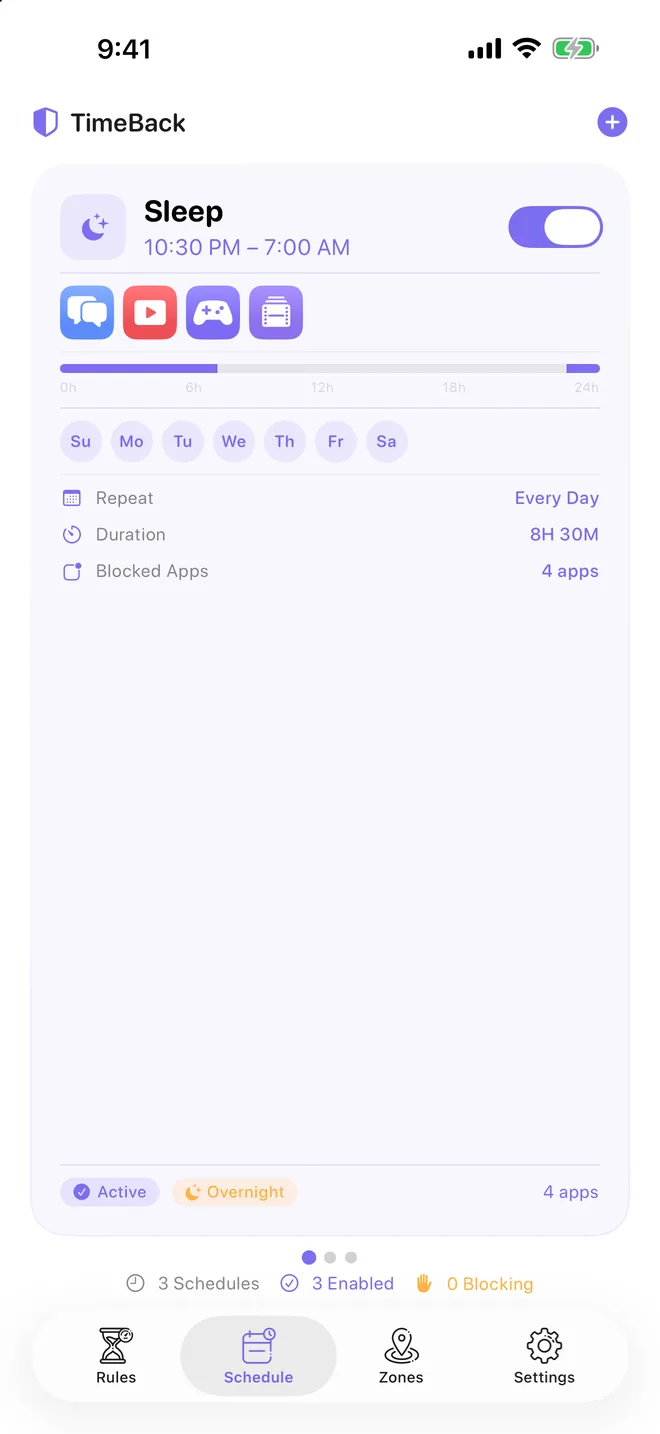
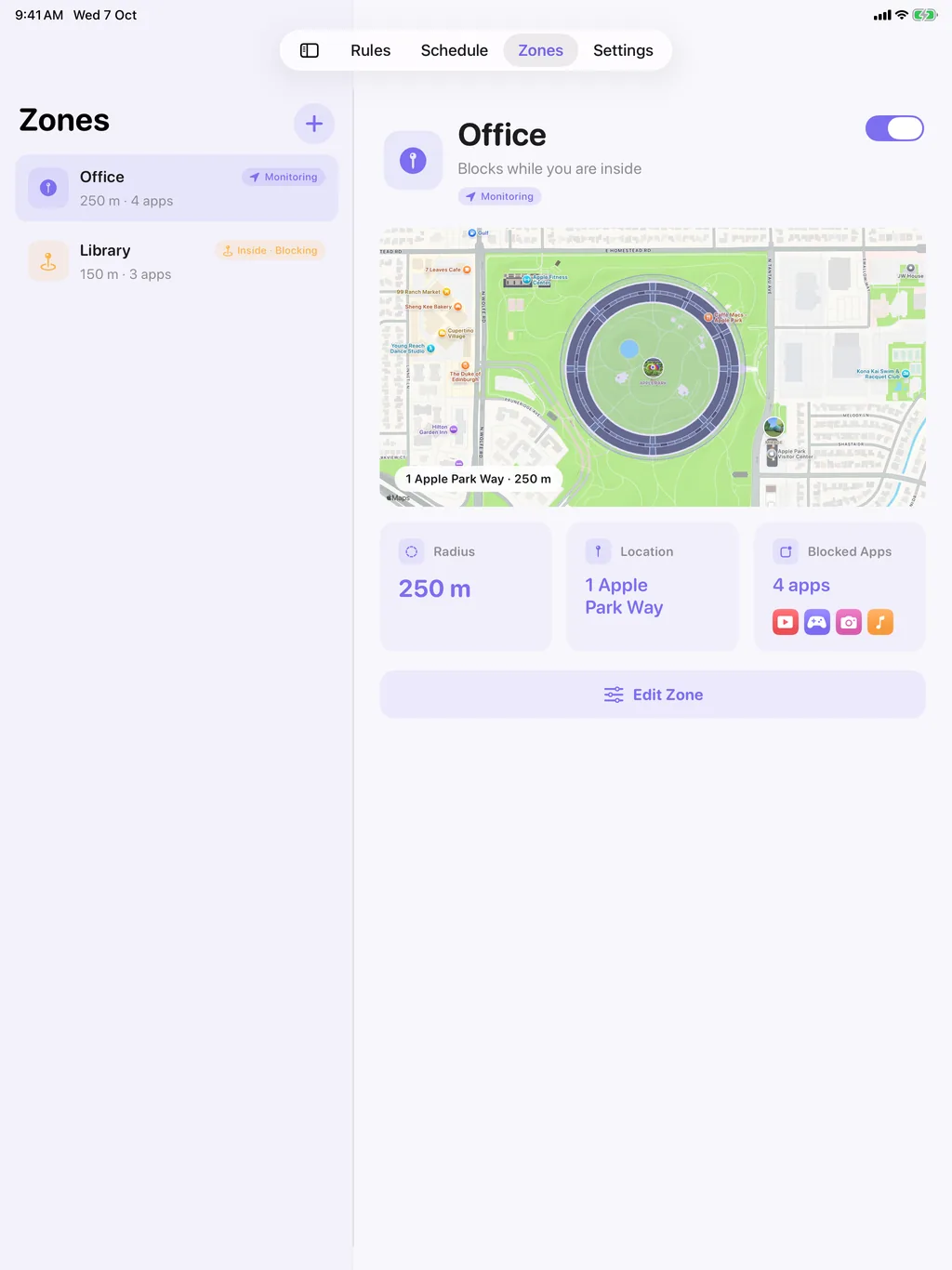
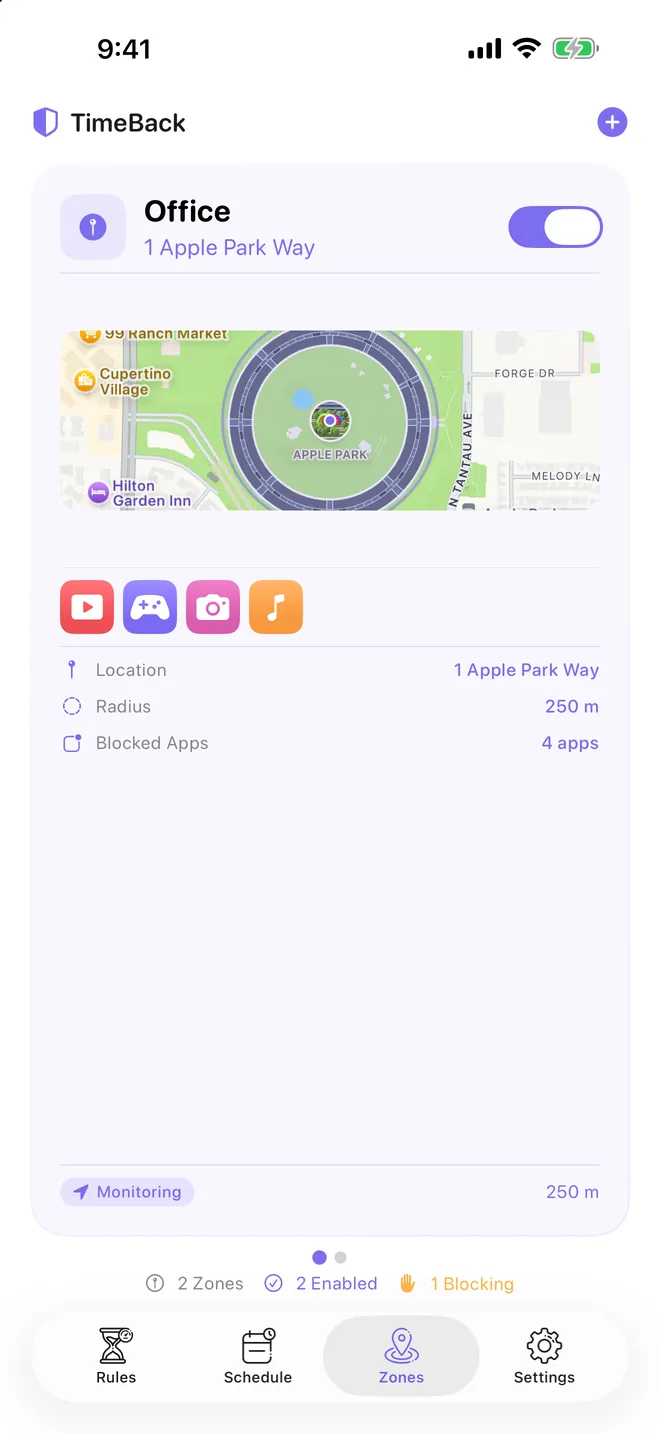
Your focus zone starts when you arrive.
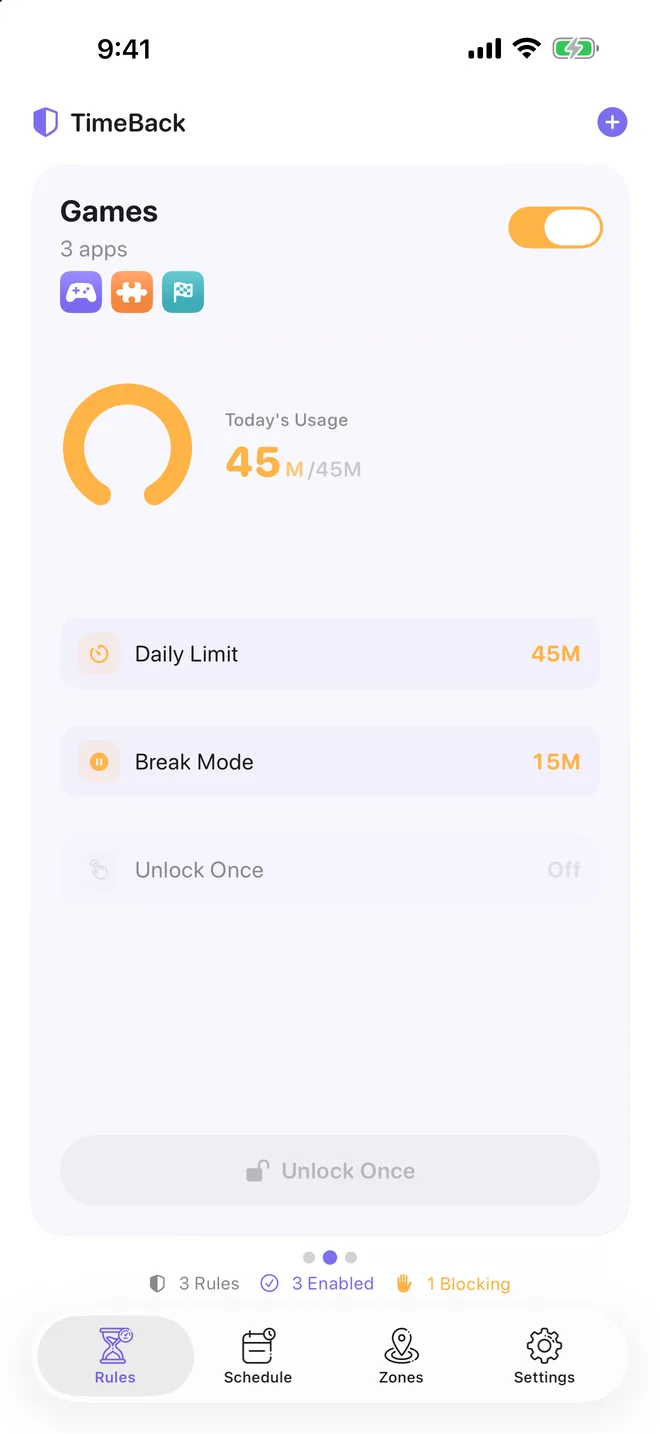
Apps stop when you reach your daily limit.
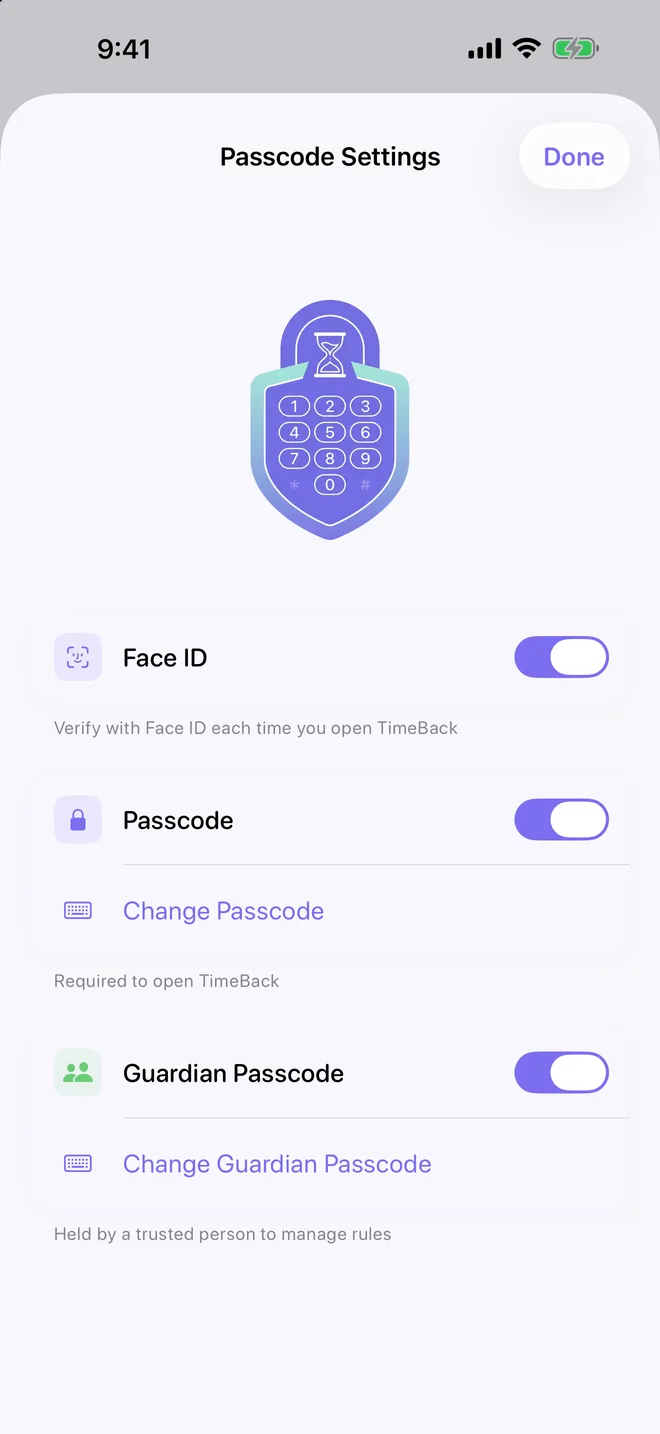
Let someone you trust help protect your rules.
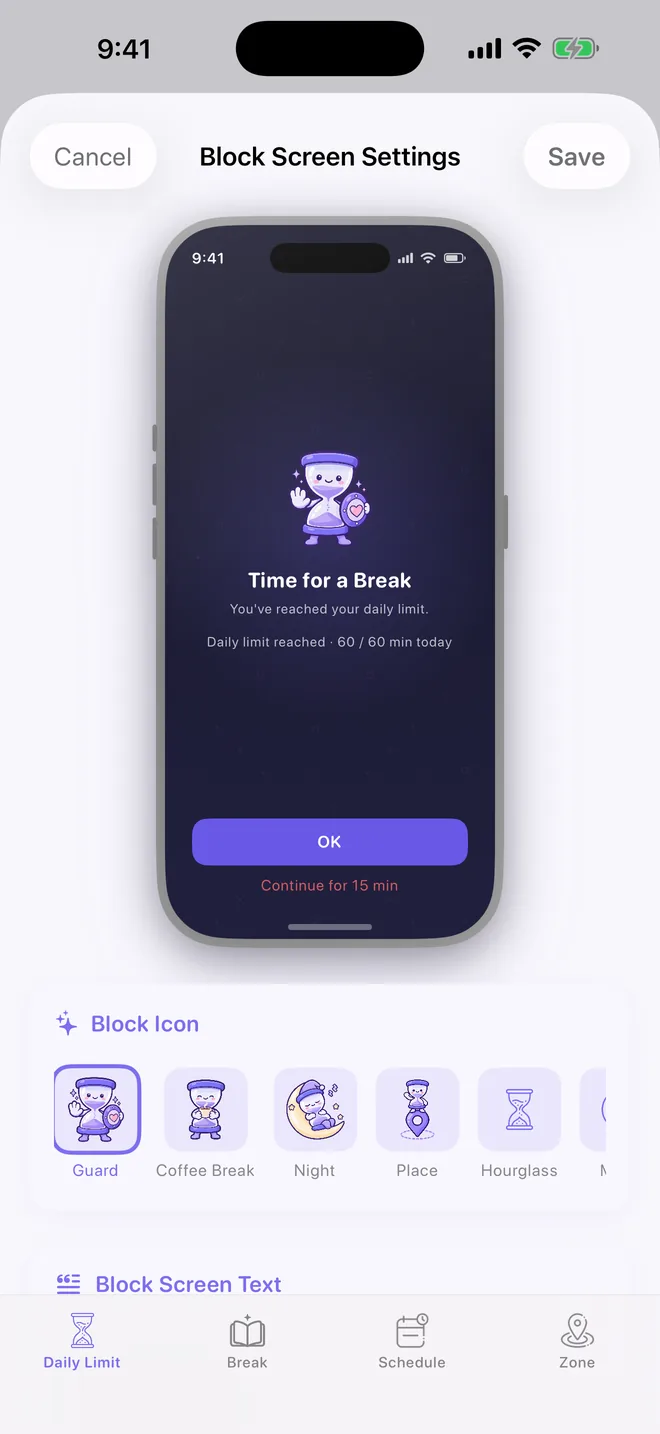
Make your block screen feel like you.
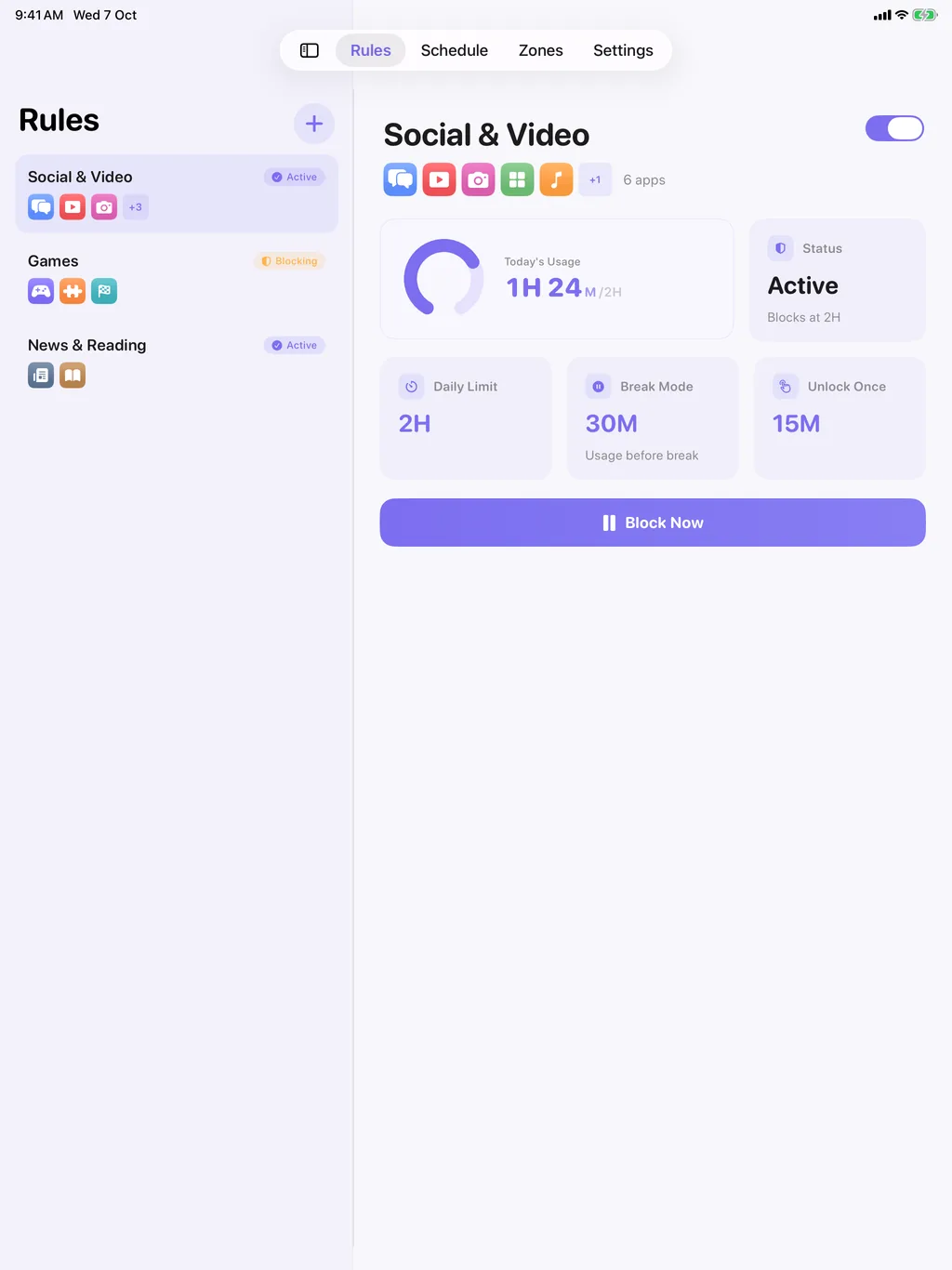
On iPad, your rules, schedules and zones are listed on the left with the selected one's dashboard on the right. Settings uses two columns too. Smaller iPads use one column.
Set Your Limits · Daily limits and breaks.
Requires iOS or iPadOS 26.2 or later.
Rules, schedules, zones and your own block screen, to cut distractions without handing over your data.
Give apps, categories or websites a daily time budget. You can set a different limit for each day of the week.
After a long stretch of continuous use, TimeBack blocks the selected apps for a short break. They can unlock on their own when it ends.
Create quiet hours for work, study, sleep, or family time, including overnight schedules like 10 PM-8 AM.
Set up zones for school, the office, the library or home. Apps are blocked while you're there and unblocked when you leave.
Limits, breaks, schedules and places each get their own mascot on the block screen. You can change its title, message, icon and unlock delay, and the old icons are still in Block Screen Settings.
Lock TimeBack with Face ID, Touch ID or Optic ID. Give a separate Guardian Passcode to a parent, partner or friend. Each wrong attempt makes the wait longer.
Each Sunday you get the past seven days charted against your daily limit, your strongest day, days under the limit and a comparison with the week before. The share image shows your week as sand in an hourglass.
Stops you from deleting TimeBack on impulse. It's optional, and while it's on, iOS won't let you delete any app on the device. TimeBack tells you this before you turn it on.
See what's blocked right now and what's next. Small and medium sizes for the Home Screen, plus two sizes for the Lock Screen.
TimeBack follows your system setting, so it goes dark when the rest of your device does.
The first time you open TimeBack, pick what you want to rein in, allow Screen Time and choose the apps. Your first rule is ready in about a minute.
In Settings, make a card with a QR code. You can add the time you took back this week, then save it to Photos or send it.
Pick apps, categories, or websites, then choose the daily limits, break mode, schedules, or zones that fit your routine. On first launch, setup gets your first rule ready in about a minute.
TimeBack is built on Apple's Screen Time frameworks. When a rule kicks in, iOS puts your block screen over the app.
An unlock delay makes you stop and think, and a Guardian Passcode keeps you from quietly undoing your rules. You can still get in when you need to.
Rules, settings and block screen text stay on your device, and passcodes are kept in its keychain.
Open the app and start. No sign-up, no email address.
No analytics, no telemetry, no ads, and no third-party tracking SDKs.
App selections use Apple's private Screen Time tokens. TimeBack cannot read app content or browsing history.